Quick answer: WordPress maintenance means updating WordPress, your theme and plugins, taking backups, checking security, keeping the site fast and testing that forms and checkout still work. Do the critical tasks weekly, the checks monthly and a bigger review a few times a year, or hand it to someone with a maintenance plan.
WordPress is free, flexible and runs a large share of all websites (new to it? Read what is a WordPress website). The price of that flexibility is that you, not the platform, are responsible for keeping everything up to date. Here is the routine I use for client sites.
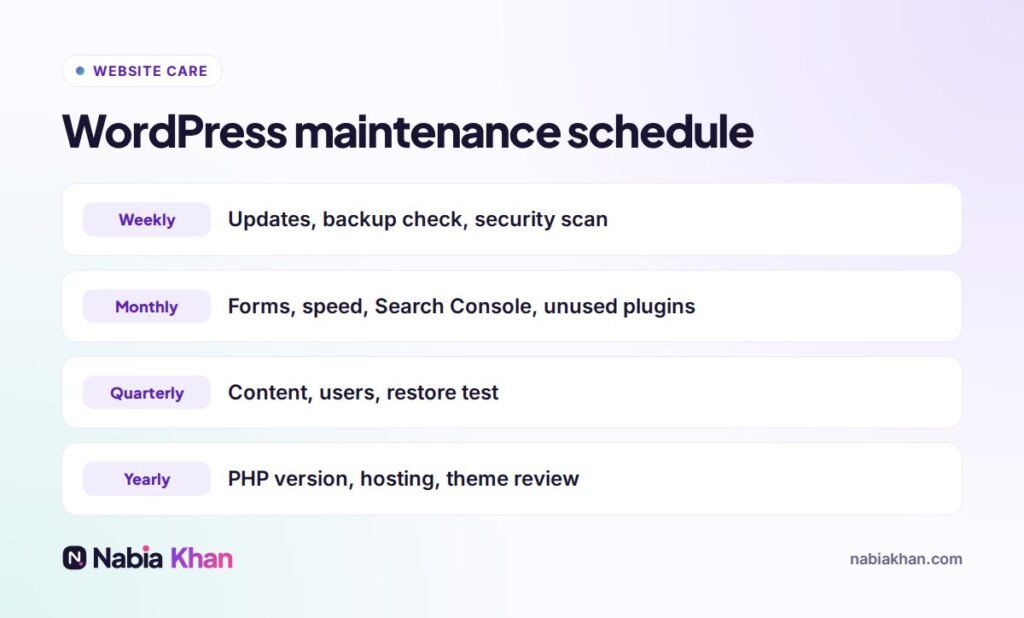
The schedule
Weekly tasks
Update core, themes and plugins
Most WordPress hacks use known holes in outdated plugins. Update one thing at a time and look at the site afterwards. For stores and busy sites, test updates on a staging copy first. I explain safe updating in how to update WordPress plugins without breaking your site.
Check backups
A backup you have never checked is a hope, not a backup. Make sure it ran, that it is stored off your server, and that it includes both files and database. More in WordPress backup: how to do it properly.
Security scan
Use a security plugin or your host’s scanner to look for malware and unexpected file changes.
Monthly tasks
- Submit every form and confirm the email arrives
- Place a test order if you sell online
- Run your homepage through Google PageSpeed Insights and note the score
- Check Google Search Console for errors and security issues
- Delete plugins and themes you no longer use
- Clean spam comments and old revisions from the database
Quarterly tasks
- Review content: prices, team, services, opening hours
- Remove user accounts that no longer need access
- Test restoring a backup to a staging site
- Check for broken links
Yearly tasks
- Make sure your server runs a supported PHP version
- Review your hosting plan: is it still fast enough?
- Check whether your theme is still maintained by its developer
- Renew your domain and confirm auto-renew is on
Tools that make it easier
A good backup plugin or host-level backups, a security plugin with a firewall, an uptime monitor that emails you when the site goes down, and a caching plugin. Many managed WordPress hosts include several of these.
Mistakes I see most
- Updating everything at once on a live store, then not knowing what broke it
- Backups stored only on the same server as the site
- Abandoned plugins that have not been updated in years
- Admin accounts called “admin” with weak passwords
- Ignoring a “PHP update required” warning until the host forces it
DIY or a maintenance plan?
If you enjoy this and have an hour a month, you can absolutely do it yourself with the schedule above. If your site brings in leads or sales and you would rather not think about it, a plan is cheaper than an emergency fix. Read WordPress website maintenance plans: what to look for to compare options.
My WordPress maintenance plans cover everything above, start at $45.99 a month and have no long contract. See all care plan prices, or start with a free website audit.
Frequently asked questions
What does WordPress maintenance include?
Updating WordPress core, themes and plugins, backups, security scans, uptime monitoring, speed optimisation, database cleanup, fixing errors and testing forms and checkout.
How long does WordPress maintenance take?
For a typical small business site, about one to two hours a month if nothing goes wrong. Fixing a problem caused by skipped updates can take much longer.
Should I turn on automatic updates in WordPress?
Automatic minor core updates are safe. For plugins, automatic updates are fine on simple sites, but stores and complex sites should test updates first or have backups ready.